Room calendar
After you connect a calendar service and bind a room in VCA Cloud, Host and Controller automatically show room meetings and let users join supported meetings.
Room Calendar shows today's and upcoming meetings for a room on the Host and Controller, and provides one-click join for supported platforms. In the current workflow, calendar authorization, provider setup, and room binding are all managed in VCA Cloud. The Host mainly syncs the backend result, displays meetings, and launches the meeting app when needed.
Before you start
Please confirm the following before setup:
- The room already has a usable room mailbox or room calendar.
- You have admin access for the target calendar service.
- The VCA Host is activated, online, and assigned to the correct room device.
How admins configure Room Calendar
1. Open Room Calendar Management
In VCA Cloud, open the Room Calendar Management page.
- Click Manage Connection to create or maintain provider connections.
- Click Add calendar to bind a specific room to a target Host.
2. Create a provider connection
VCA Cloud currently supports these connection types:
- Microsoft 365 Global / China: have the customer tenant administrator approve access for the VCA app. See Authorize room calendar access.
- Google Workspace: authorize with a Workspace admin account.
- Exchange On-Prem: enter the Exchange server address, service account, and related connection details.
If you use Microsoft 365 and the room calendar only shows the organizer name, or fails to parse Feishu, DingTalk, or Tencent Meeting invites, see Room mailbox parsing issues.
3. Add a room calendar
- Select the room mailbox or room calendar from the connected provider.
- Assign it to the target Host.
- Save the binding and wait for the backend sync to complete.
What users see after setup
When setup is complete, Host and Controller usually show:
- Today's meetings, the current meeting, and upcoming meetings
- Meeting title, organizer, start time, and end time
- A join entry or Join button for supported meeting platforms
To check which meeting platforms can currently be parsed, see Supported meeting platforms.
View and use Room Calendar on Controller / Host
After the calendar connection and room binding are complete, users can view the day's meetings on both Controller and Host and join supported meetings directly from the calendar.
1. View the meeting schedule
- In the main interface of the Controller app, make sure you are on the Home tab.
- The right side of the interface shows the synchronized meetings for the day, including the meeting title, organizer, and scheduled time.
- The Host main screen also usually shows the same calendar information for people in the room.
2. Join meetings from the calendar
- On the Controller Home tab, find the meeting entry you want to join.
- If a Join button is shown directly next to the meeting, click it and VCA will identify the meeting type and launch the correct app on the Host.
- If the invitation is compatible with multiple clients, a drop-down arrow appears next to the meeting entry so you can choose the join method first.
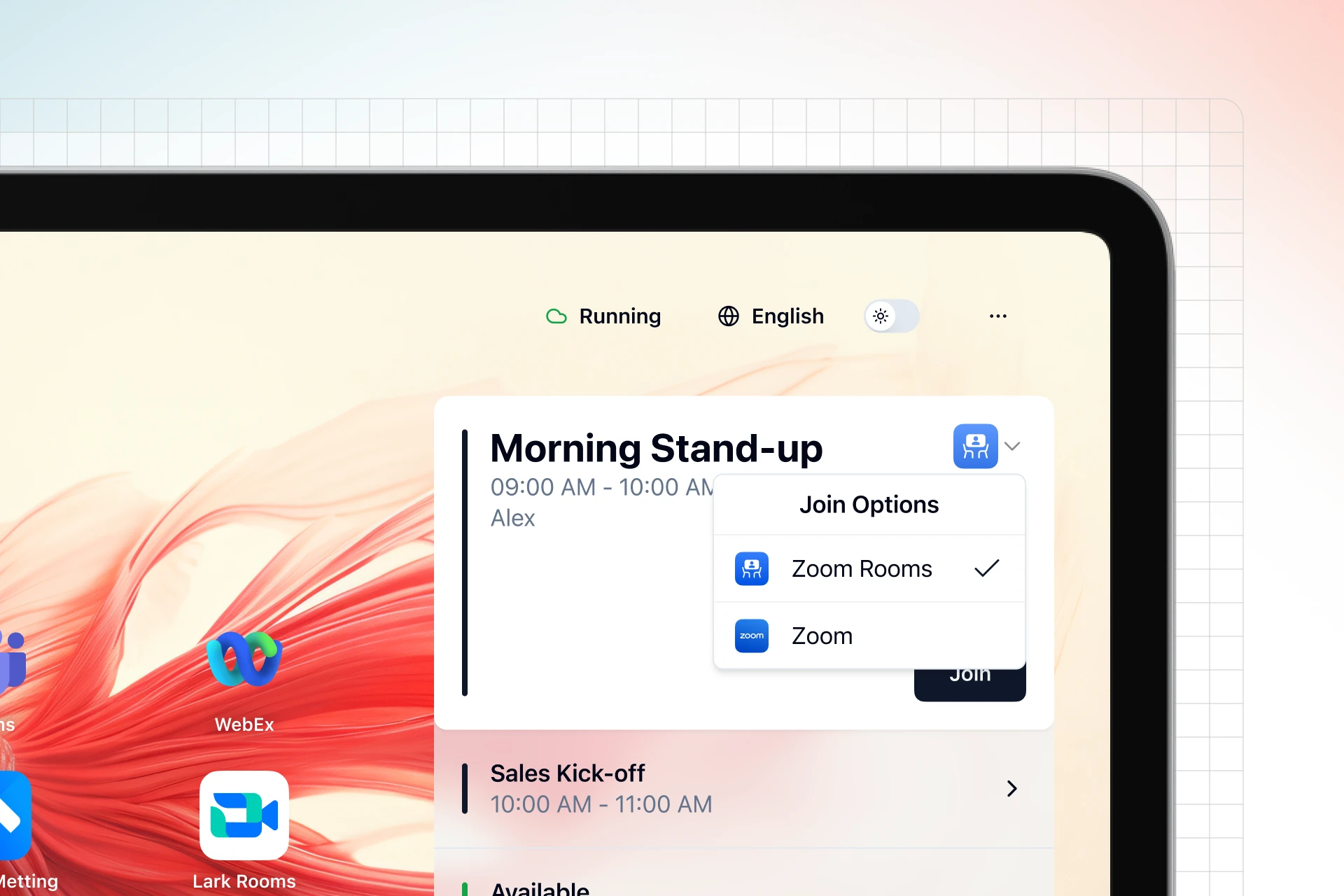
- For example, if the same Zoom meeting can be joined with both Zoom Rooms and the standard Zoom client, the user can choose which one to use.
- VCA handles the link parsing and app switching in the background, so you usually do not need extra steps on the Host.
How to tell whether setup is working
You can check the current state from both VCA Cloud and the Host.
Status in VCA Cloud
In VCA Cloud, you will usually see two kinds of status:
- Connection status:
Pending,Active,Error,Disabled - Sync status:
Pending,Syncing,Healthy,Error,Disabled
If either the connection status or the sync status shows Error, the most common causes are expired authorization, a network failure, or a provider-side error.
Room status on the Host
The Host may show one of these labels:
Backend synced: this Host is already using the new backend sync flow and receives room data from VCA Cloud.Legacy local sync: this Host is still using the older local setup flow. Recreate the connection and binding in VCA Cloud instead of continuing with Host-local setup.Waiting for room assignment: Room Calendar is enabled on the Host, but no room has been assigned yet.
Common checks
- The calendar list is empty or meetings do not appear: first confirm that the provider connection is still valid, then check that the room is bound to the correct Host.
- The Host keeps showing
Waiting for room assignment: the room binding was not completed successfully, or the room was assigned to another Host. - The Host still shows
Legacy local sync: the device is still on the old flow. Move the setup to VCA Cloud instead of continuing local authorization on the Host. - Microsoft 365 shows the organizer name as the title, or third-party meetings cannot be parsed: this is usually caused by Calendar Processing rules on the room mailbox trimming the subject or body. See Room mailbox parsing issues.
- The meeting appears but there is no
Joinbutton: check whether the meeting platform is supported and whether the invitation body was trimmed by the calendar provider.