The Reality of Fragmented Meetings
In today's global business environment, you might have a 9 AM strategy call on Microsoft Teams, a 10 AM client pitch on Zoom, and an 11 AM regional update on Tencent Meeting (VooV). Traditional room systems struggle with this variety, often forcing users to use multiple devices or complex wiring.
Enter VCA (Video Conference Assistant) Orchestration
VCA (Video Conference Assistant) simplifies this by treating video conferencing apps as a managed suite. Here is how you can set up a high-performance, multi-platform room in minutes.
Step 1: The Hardware Foundation
Unlike proprietary systems, VCA runs on any standard Windows 10/11 or macOS computer. You don't need to change your existing cameras or microphones—VCA works with all USB-based peripherals.
Step 2: Intelligent App Management
In the VCA Host settings, you can add any installed conferencing client:
- Global Platforms: Zoom, Teams, Webex, Google Meet.
- Domestic Giants: Tencent Meeting, Feishu (Lark), DingTalk.
VCA automatically indexes these applications and prepares them for rapid switching.
Step 3: Tablet-Based Control
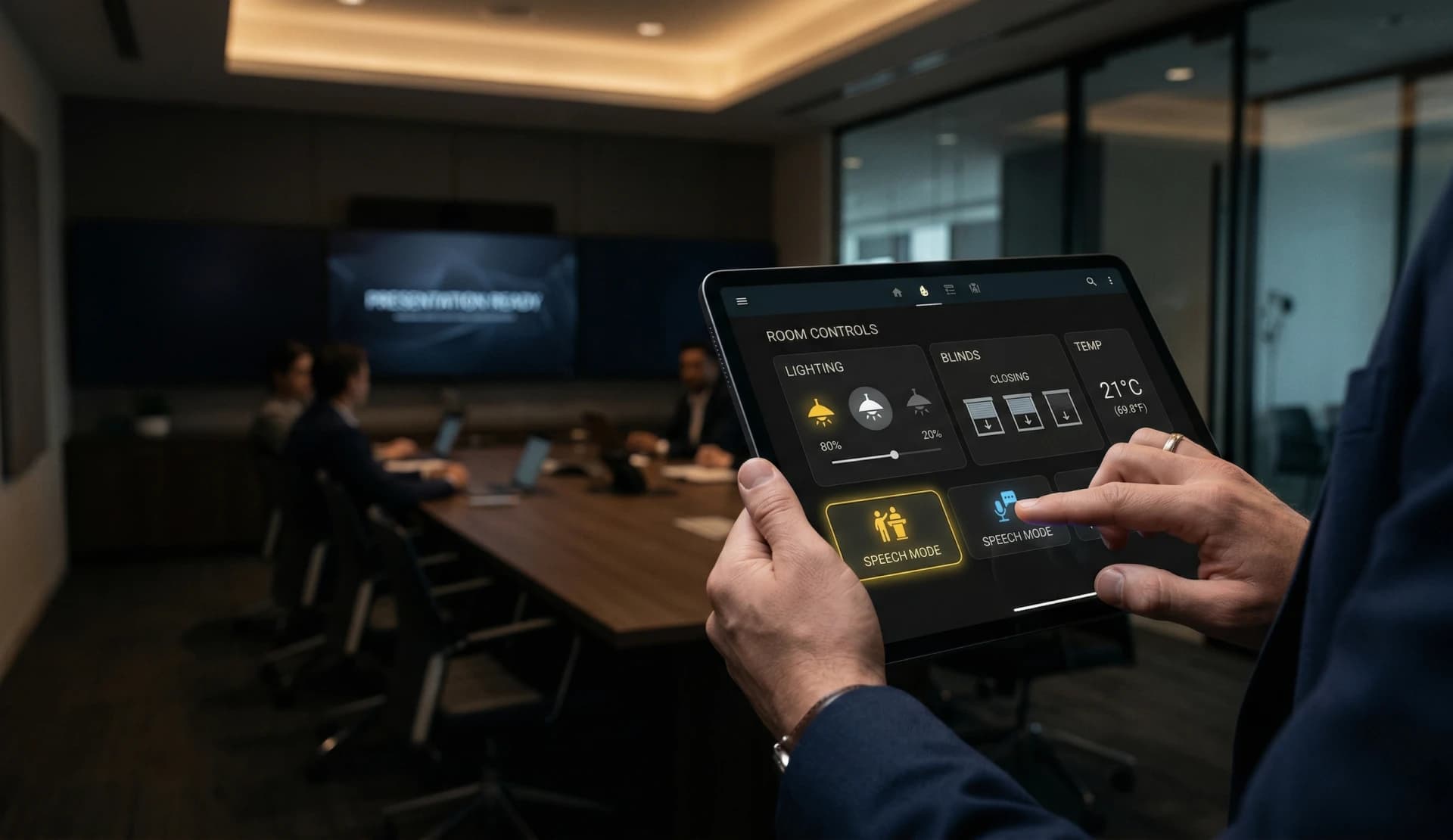
With the VCA Controller on your iPad or Android tablet, the room becomes truly "touch-first."
- Launch: Tap the Zoom icon to start a meeting.
- Switch: Need to join a Teams link? Just tap the Teams icon. VCA safely handles the transition, ensuring one app releases the camera before the next one grabs it.
- Control: Use the Virtual KVM features to type meeting IDs or navigate menus without a physical keyboard on the table.
Why This Workflow Wins
- No Cable Swapping: Everything happens at the software level.
- Native Performance: You are running the actual desktop apps, so you get all features (unlike web-based guest joins).
- Simplified UX: Guests and employees don't need training; the interface is as intuitive as a smartphone.
Start Your Orchestrated Meeting Room Today
The future of meeting rooms is software-defined. By using VCA (Video Conference Assistant), you can turn any room into a universal communication hub.
Author: VCA (Video Conference Assistant) Team